Articles by "android"
Showing posts with label android. Show all posts
A unique platform to get tutorials on basic and advance computer skills like programming, blogging. Get latest technology updates,news, tutorials
 How To Stream Audio From PC To Any  Android Device
   Streaming of video from one platform to another is very important to Today's World. This method on How To Stream Audio From PC To Any  Android Device is very easy and fast, you just need to create the server at PC end and then using the app on android that will allow you to stream out all your PC sound to your android phone. Just follow step by step guide below.

Steps To Stream PC Audio To Android Device:

  1. First of all in your PC you need to download and install the SoundWire server and for that download it and then install it in your PC.
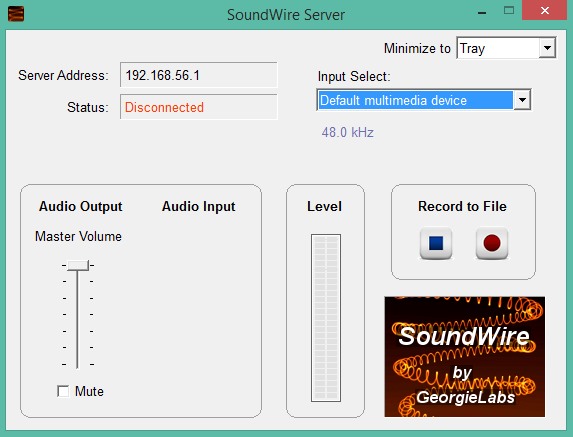
  2. Now you need to launch the tool in your PC and you will see the interface like below.
    Stream PC Audio To Android Device
  3. You can also alter the settings according to your wish.
  4. Now in your android phone you need to download and install the app SoundWire this is the app that will help you to stream PC audio directly to your Android.
  5. After installing the app, launch it in your device and there you will find the field to enter the server address to get connected.
  6. Now on your PC server note down the IP address and then fill it in your android phone.
  7.  Now simply click on soundwire icon and your device will start creating connection and then your device will get connected to your PC.
  8. Now play any of the sound on your PC and that will then stream on your android.
  9. You can easily edit all the audio equalizer setting according to your wish to get the best results.
  10. Thats it you are done, now easily play PC sounds on your android phone.
Hope you like this article(How To Stream Audio From PC To Any  Android Device), keep on sharing with others too. Leave a comment below if you have any related queries with this.
A unique platform to get tutorials on basic and advance computer skills like programming, blogging. Get latest technology updates,news, tutorials
 How To Remotely Delete All Data From your Stolen Device
Alot of people around the globe has been having lots of issues with their private data on their phone when their device is been stolen. So today, i will  be showing you a short tutorial on how to delete your files remotely from your stolen devices.
The method to set up this is very simple and you can do this in almost any android device. In this, you will be setting your android device manager to remotely access your device to do the respective changes. So follow up the steps below to proceed with setting this that you probably need in your future. follow the steps below carefully.

How To Remotely Delete All Data From your Stolen Device

Step 1. First of all go to the Google Settings app in your android and then locate “Security” and then Select the box “Allow remote lock and factory reset.”
Step 2. Now check that the  “Remotely locate this device” button should already be clicked. Also, check “Allow remote lock and factory reset.” A pop-up will appear asking for permission to wipe your device. Grant permission for it.
Step 3. Now sign into your Google account and go to the Android Device Manager there.
Now go back to Settings -> Security -> Phone Administrators and make sure that “Android Device Manager” is checked.
Step 4. Now go to Android Device Manager website and select that device you want to syncfrom the list of devices associated with your google account. There you will see options to “Ring” “lock” and “erase” the device.
Step 5. Select lock screen if you want to lock device with the new password. Now select the erase button there and the popup will appear asking reset your phone, agree on it if you want to erase data of your lost android.
Hope you like this(How To Remotely Delete All Data From your Stolen Device), do share it with others too. Leave a comment below if you have any related queries with this.
A unique platform to get tutorials on basic and advance computer skills like programming, blogging. Get latest technology updates,news, tutorials
 Simple Guide To Stream Windows 10 Screen On VR Android Device

In today's world, virtual reality technology is becoming trend and now its time to try this amazing technology for PC

Simple Guide To Stream Windows 10 Screen On VR Android Device

The method is quite simple but little bit time consuming and with that you can easily mirror your PC to your VR android. So follow up the steps below to proceed.

Steps To Stream Windows 10 Screen On VR Android Phone:

1. First of all download and install the trinus VR windows 10 Server on the computer/Laptop.
2. Now download the Trinus VR lite Client App on your Android Phone.
3. Both Server and Client should be connected to the same network i.e. Connect both the computer/Laptop and Android Mobile to the Same Wi-fi Router.
4. After you have installed the Trinus VR server and client app on the respective devices, Start first the Server App on the Computer, Then Launch the Trinus VR Client app on the Android device.
5. Now the Server and client will try to connect to each other based upon the type of connection. Now either select the Method A (WiFi) or the Method B (USB) to get the devices Connected.
6. If you are using the WiFi mode of connection, Please open the Trinus VR Appon server(computer) and Client (android device)
7. Now, press the start button on Server and wait until it detects the client automatically. If it doesn’t detect the client automatically copy the IP address.
8. Now select the “IP” option on the computer and Enter the IP address of the client.
9. Now click on the “OK” button. the Trinus logo will now be “Blue(Voilet)” instead of the previous grey.
10. Thats it you are done, now you successfully streamed your normal windows screen to your android phone in VR Format. Simply navigate your mouse to change the screen streamed to your Android Phone.

Alternative Way Using USB Data Cable To Stream:

  1. First of all you need to enable the USB tethering in your android phone and for that you have to navigate to Settings – > Networks – > Tethering & Hotspot and there enable it.
  2. Now connect your android to your PC using the data cable and then launch the Trinus app and then you will see USB connected there and then you need to click on Trinus black logo there and it will got blue indicating the device being connected.
  3. Thats it you are done, now your device is successfully connected and you can stream the VR display on android phone.

Hope you like the method(Simple Guide To Stream Windows 10 Screen On VR Android Device), keep on sharing with others too. Leave a comment below if you have any related queries with this.
A unique platform to get tutorials on basic and advance computer skills like programming, blogging. Get latest technology updates,news, tutorials
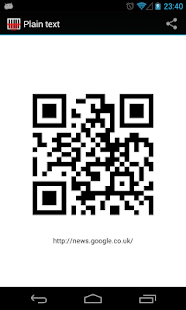
 Guide on how to use QR Code to share your Complicated WiFi password with Friends
This tutorial talks about something really interesting and educative. QR Code is a trending technology. Today, we are going you the complete guide to Share your WiFi Connection with your friends without giving real passwords to them. This is really interesting tech. If you don’t want to share your WiFi passwords with your friends or guests in your house.
Here we create QR Code that saved all information about your wifi. You guest or friends, just need to scan this QR Code from mobile for connecting with your wifi.

Guide on how to use QR Code to share your Complicated WiFi password with Friends

Guide on how to use QR Code to share your Complicated WiFi password with Friends
This process takes only seconds and your friends don’t need to type anything,  just scan it and connect it.
1. First Open QR Code Generator Website in your Computer or Mobile.
2. In this website type your SSID (WiFi name) , wifi password, select type of security and click on Generate WiFi QR Code.
3. Now you see your newly generated QR Code on your PC screen. You can also save this QR Code in your PC from the click on Download your Android WiFi QR Code button below the QR Code image. (You can send this QR Code to your friends or save this image on your mobile, so your friends easily connect with your wifi from scanning this QR image in mobile.)
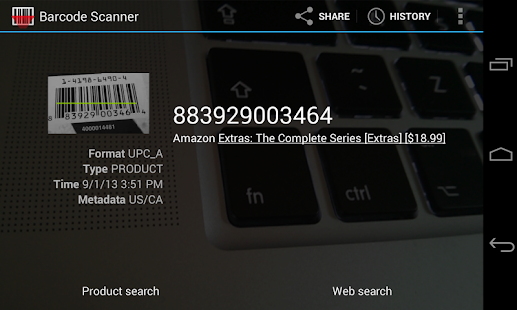
4. Download QR Code Scanner from Google Play Store for scanning this QR Code with your Phone. I recommend you to download Bar Code Scanner. Because this is free, lightweight and ad-free.
Developer: ZXing Team
Price: Free
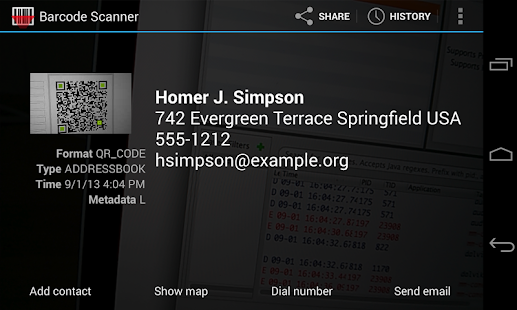
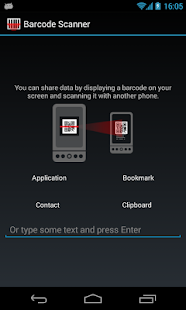
  • Barcode Scanner Screenshot
  • Barcode Scanner Screenshot
  • Barcode Scanner Screenshot
  • Barcode Scanner Screenshot
  • Barcode Scanner Screenshot
5. Now scan WiFi QR Code from the Bar Code scanner app in your mobile.
When you friend phone successfully scan this image, you see this screen in your mobile, tap on Connect to Network and your friend phone is connected to wifi without sharing the password.
Guide on how to use QR Code to share your Complicated WiFi password with Friends
Hope you like this article(Guide on how to use QR Code to share your Complicated WiFi password with Friends). Kindly share.

Source: prophethacker
A unique platform to get tutorials on basic and advance computer skills like programming, blogging. Get latest technology updates,news, tutorials
 How to fix 10 Most Common Android Phone Problems

In this post, we talked about How to fix 10 Most Common Android Phone Problems them very easily. Android is one of the most popular mobile os for a smartphone. Millions of mobiles are running on Android OS.The reason for their increasing popularity is the unlimited options of applications that make communication easier for one and all and that also without any extra charges.

How to fix 10 Most Common Android Phone Problems

1. Unlock Mobile Pattern Lock If you were forgotten
 Unlock Mobile Pattern Lock

Android lock pattern. If you forget your Pattern lock in your android phone and don’t know what to do for resetting your android phone. Here is the guide for your phone with the below guide you can easily reset pattern lock of your android phone.
There are three ways for removing pattern lock of your android phone.
  • Factory Reset your android phone from bootloader settings.
  • From your Google Account id and password. Just Hit the Forget button and type your Google id and pass.
  • Remove Pattern lock from Command Prompt with Windows PC.

2. Install Apk from Third Party

 Install Apk from Third Party

Like you know by default, Android doesn’t allow users to install third-party APK files or third party apps. But, this is possible to bypass this barrier by doing the following steps.
  • Open your Android Phone settings.
  • Go to Security find out Unknown Sources and make a tick next to this option.


3. Error While Downloading Apps from Google Play

Sometimes Google Play Store app show error when we try to download or update particular android apps from Google Play Store. Previously in this blog we write about this topic how to fix problems with Google Play Store. There are three solutions to this problem is :
1. Generally, solution of this problem is Clear your Google Play Store app cache and data from your android phone.
2.  Add a new Gmail account and try with that.
3. Get the APK file from the third party and try to install it.

4. Battery Life issue

  • You can’t do anything if your mobile battery is draining very fastly. But, you can take some additional steps to save your battery.
  • Always charge your android phone with original charger, stop background process from Greenify app, uninstall useless apps, stop playing high-end games in mobile.
  • You can also buy a new android phone battery from Online Stores.

5. Low Memory Space Issue
 Low Memory Space Issue - Fervidtech
There is no app in the Google Play Store for increasing your mobile storage. But you can solve low memory issue by following below 


  • Delete blurred, black and useless photos from your android phone.
  •  Use Duplicate Finder app in your Phone for find and delete duplicate files in android mobile
  • Delete useless files, videos, and Games from your phone.
  • Increase the SD card memory to get more space to gather your files.

6. How to avoid Android overheating issues?

To fix Android heating problem, you need to:
• Stop playing video game
• Disable functions when you don’t need them.
• Dust off your smartphone.
• Simply turn off your phone when you are sleep

7. Problem – Your phone gets wet in the rain.

You should disassemble your phone taking out the cover, the battery, memory card and SIMs out of it. Place all of these components of your Android device in a big bowl of rice. The rice grains will naturally absorb all water and leave your phone dry in a few hours. You may assemble everything back and have your Android phone in working condition. If it doesn’t work, you’ll need to visit a service center.

8. Unresponsive screen

Sometimes your phone’s screen may become unresponsive to any touch. This may occur if you have dropped your phone somewhere or if your phone gets splashed with water. Solution – Try restarting your Android phone. In case it doesn’t work, chances are that you have damaged your phone and it needs to be taken to the service center.

9. How to Fix Android file transfer is not working in PC

If your android mobile is not connected to your PC from USB cables follow below guides, you can learn how to fix this problem in your Windows PC and Mac.

10. WiFi is not Connecting

Problem – Issue connecting to WiFi This can happen many times because of several different reasons. Solution – Ensure that you are entering the right password. Ensure that your phone is not in the Airplane mode.Delete the wifi profile from your android phone. Try restarting the WiFi router. Restart the phone and try again.
Hope you like this article(How to fix 10 Most Common Android Phone Problems). Kindly share.

Source: prophethacker.com
A unique platform to get tutorials on basic and advance computer skills like programming, blogging. Get latest technology updates,news, tutorials
 Tutorial On How To Protect Rooted Android From Security Threats
Android users, we are here with Tutorial On How To Protect Rooted Android From Security Threats. Many of you might have rooted android devices. But do you know? rooted android is an open gateway for security threats towards your android and if security measures are not adopted then they can harm your android. 
Today, we are discussing some tips that you should put in place to protect your rooted android from threats and viruses.

Tutorial On How To Protect Rooted Android From Security Threats

So read out all the tips below.

#1  Manage Your App Permission

Use F- Secure App Permission App
 f-secure @fervidtech

Today there are millions of apps in Google Play Store that access your android data by granted permissions while accepting the terms during the downloading process, so to manage that permissions properly and protect your data being flowed out to the apps, this is the best app that we prefer to use in your android device. So you must install this app in your and secure it today.

You can also use Apps Ops

You can also use Apps Ops, which serves the similar feature like F-secure App Permission, F-secure is not available in Google play store. But you can get Apps Ops from play store. App Ops” is a built-in application permissions manager which helps you to toggle permissions of the installed apps

#2 Use Best Antivirus Apps For Your Android To Protect It From Viruses
 Best antivirus app for andorid

Antivirus programs are really helpful to keep your android free from all the viruses that can come easily in your rooted android because of many flaws that can develop after rooting your android. So use the antivirus from the above link and keep your android secure from viruses and threats.

    #3 Don’t Install Unauthorized Apps After Rooting

    Many of users root their android device to get rid of the pre-installed apps but actually these must be there on your android device as they protect your device from another spying apps. Users tend to prefer new apps rather than an old one, So it’s always better to install authorized apps from Google play store

    #4 Using System Cleaner In Your Rooted Android

    Use CM Security

    This is one of the preeminent security tools or antiviruses for your android device that implements security from all the external threats. By using this app, you can scan out all the malicious apps that you have been installed on your android device. Also, this can be handled as app lock too to protect your app from unauthorized access. 
    Features: 
    • Android 5.0 and 6.0 is supported
    • Fingerprint lock password is supported on specific devices
    • Snap the snooper who tried to unlock your apps
    • Customized lock mode. You don’t need to unlock apps every time.

    Use Clean Master

    The World’s Most Trusted Android Optimizer, Speed Booster, Battery Saver and Free Anti-Virus app, Clean Master Helps Accelerate and Clean Up your Phones! It Also Provides Real-time Protection With the #1 Antivirus Engine, and Secures Your Private Data With the AppLock Function.
    Features:
    • AppLock can lock Facebook, SMS, Contacts, Gallery, or any other apps you choose.
    • Battery Saver helps to analyze battery status and hibernate running apps to save power.
    • Swipe gives you quick access to other apps and tools without having to go back to your home screen.
    • The junk-creating behavior of millions of apps has been analyzed so that Clean Master can efficiently hone in on its targets (cache and residual files) with perfect accuracy.
    • Boost your games and apps, free up memory (RAM), speed up your device and save more battery

    #5 Use Android Device Manager In Your Android
     Android Device Manager

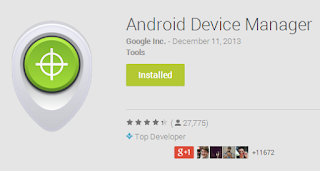
    You must enable Android device manager in your android as this is the reliable choice to track your lost android from your google account. Also,  make sure to provide the complete supremacy to this app for its excellent working.

    #6 Use App Locker(CM Locker) To Lock your personal apps

    Very often we share our smartphone with others, at that time our privacy can be at risk, so you can use the App locker app that helps to protect your apps with a password. You can easily protect apps like Whatsapp, Messenger, Browser, and Gallery etc.

    Features:

    • Boost phone speed by 100% directly from the toolbox
    • Clean battery draining apps to extend battery life by 30% (generally)
    • Snap phone peepers after they enter wrong passwords, catch anyone who tries to snoop on your phone

    #7 Don’t Remove Pre-Installed Apps

    After we root our android device we tend to remove pre-install apps. Sometimes we remove some apps which are necessary to run android device perfectly. So uninstalling the preinstalled applications without knowing what is the application about, I would suggest you never uninstall a pre-installed application.

    #8 Always have a Backup

    Backing up your phone is the best thing you can do for your android smartphone. There is nothing worse than losing everything on your phone and realizing you never backed up anything. So, you just needed an app which allows you to backup your apps images and all your android data.

    Use Titanium Backup

    You can backup, restore, freeze your apps + data + Market links. This includes all protected apps & system apps, plus external data on your SD card. You can do 0-click batch & scheduled backups. Backups will operate without closing any apps. You can move any app (or app data) to/from the SD card. You can browse any app’s data and even query the Market to see detailed information about the app.
    Features:
    • Keep multiple backups per app
    • Backup/restore SMS,MMS,calls,bookmarks,Wi-Fi AP as XML
    • Restore individual apps+data from non-root ADB backups!
    • Restore individual apps+data from CWM backups!
    • Restore individual apps+data from TWRP backups!
    • Integrate system app updates into ROM
    Hope you like the post (Tutorial On How To Protect Rooted Android From Security Threats), do share this with others too. Leave a comment if you still have any queries related this.