Articles by "Mobile-Phone-Tips"
Showing posts with label Mobile-Phone-Tips. Show all posts
A unique platform to get tutorials on basic and advance computer skills like programming, blogging. Get latest technology updates,news, tutorials
 Guide on how to use QR Code to share your Complicated WiFi password with Friends
This tutorial talks about something really interesting and educative. QR Code is a trending technology. Today, we are going you the complete guide to Share your WiFi Connection with your friends without giving real passwords to them. This is really interesting tech. If you don’t want to share your WiFi passwords with your friends or guests in your house.
Here we create QR Code that saved all information about your wifi. You guest or friends, just need to scan this QR Code from mobile for connecting with your wifi.

Guide on how to use QR Code to share your Complicated WiFi password with Friends

Guide on how to use QR Code to share your Complicated WiFi password with Friends
This process takes only seconds and your friends don’t need to type anything,  just scan it and connect it.
1. First Open QR Code Generator Website in your Computer or Mobile.
2. In this website type your SSID (WiFi name) , wifi password, select type of security and click on Generate WiFi QR Code.
3. Now you see your newly generated QR Code on your PC screen. You can also save this QR Code in your PC from the click on Download your Android WiFi QR Code button below the QR Code image. (You can send this QR Code to your friends or save this image on your mobile, so your friends easily connect with your wifi from scanning this QR image in mobile.)
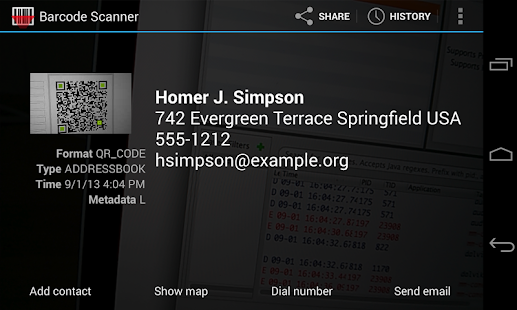
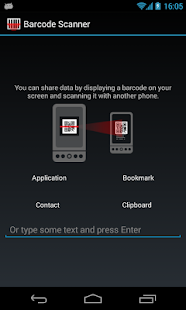
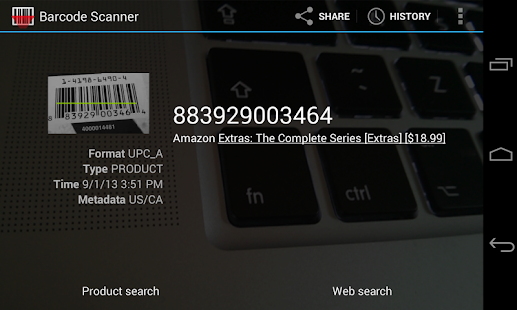
4. Download QR Code Scanner from Google Play Store for scanning this QR Code with your Phone. I recommend you to download Bar Code Scanner. Because this is free, lightweight and ad-free.
Developer: ZXing Team
Price: Free
  • Barcode Scanner Screenshot
  • Barcode Scanner Screenshot
  • Barcode Scanner Screenshot
  • Barcode Scanner Screenshot
  • Barcode Scanner Screenshot
5. Now scan WiFi QR Code from the Bar Code scanner app in your mobile.
When you friend phone successfully scan this image, you see this screen in your mobile, tap on Connect to Network and your friend phone is connected to wifi without sharing the password.
Guide on how to use QR Code to share your Complicated WiFi password with Friends
Hope you like this article(Guide on how to use QR Code to share your Complicated WiFi password with Friends). Kindly share.

Source: prophethacker
A unique platform to get tutorials on basic and advance computer skills like programming, blogging. Get latest technology updates,news, tutorials
 How to fix 10 Most Common Android Phone Problems

In this post, we talked about How to fix 10 Most Common Android Phone Problems them very easily. Android is one of the most popular mobile os for a smartphone. Millions of mobiles are running on Android OS.The reason for their increasing popularity is the unlimited options of applications that make communication easier for one and all and that also without any extra charges.

How to fix 10 Most Common Android Phone Problems

1. Unlock Mobile Pattern Lock If you were forgotten
 Unlock Mobile Pattern Lock

Android lock pattern. If you forget your Pattern lock in your android phone and don’t know what to do for resetting your android phone. Here is the guide for your phone with the below guide you can easily reset pattern lock of your android phone.
There are three ways for removing pattern lock of your android phone.
  • Factory Reset your android phone from bootloader settings.
  • From your Google Account id and password. Just Hit the Forget button and type your Google id and pass.
  • Remove Pattern lock from Command Prompt with Windows PC.

2. Install Apk from Third Party

 Install Apk from Third Party

Like you know by default, Android doesn’t allow users to install third-party APK files or third party apps. But, this is possible to bypass this barrier by doing the following steps.
  • Open your Android Phone settings.
  • Go to Security find out Unknown Sources and make a tick next to this option.


3. Error While Downloading Apps from Google Play

Sometimes Google Play Store app show error when we try to download or update particular android apps from Google Play Store. Previously in this blog we write about this topic how to fix problems with Google Play Store. There are three solutions to this problem is :
1. Generally, solution of this problem is Clear your Google Play Store app cache and data from your android phone.
2.  Add a new Gmail account and try with that.
3. Get the APK file from the third party and try to install it.

4. Battery Life issue

  • You can’t do anything if your mobile battery is draining very fastly. But, you can take some additional steps to save your battery.
  • Always charge your android phone with original charger, stop background process from Greenify app, uninstall useless apps, stop playing high-end games in mobile.
  • You can also buy a new android phone battery from Online Stores.

5. Low Memory Space Issue
 Low Memory Space Issue - Fervidtech
There is no app in the Google Play Store for increasing your mobile storage. But you can solve low memory issue by following below 


  • Delete blurred, black and useless photos from your android phone.
  •  Use Duplicate Finder app in your Phone for find and delete duplicate files in android mobile
  • Delete useless files, videos, and Games from your phone.
  • Increase the SD card memory to get more space to gather your files.

6. How to avoid Android overheating issues?

To fix Android heating problem, you need to:
• Stop playing video game
• Disable functions when you don’t need them.
• Dust off your smartphone.
• Simply turn off your phone when you are sleep

7. Problem – Your phone gets wet in the rain.

You should disassemble your phone taking out the cover, the battery, memory card and SIMs out of it. Place all of these components of your Android device in a big bowl of rice. The rice grains will naturally absorb all water and leave your phone dry in a few hours. You may assemble everything back and have your Android phone in working condition. If it doesn’t work, you’ll need to visit a service center.

8. Unresponsive screen

Sometimes your phone’s screen may become unresponsive to any touch. This may occur if you have dropped your phone somewhere or if your phone gets splashed with water. Solution – Try restarting your Android phone. In case it doesn’t work, chances are that you have damaged your phone and it needs to be taken to the service center.

9. How to Fix Android file transfer is not working in PC

If your android mobile is not connected to your PC from USB cables follow below guides, you can learn how to fix this problem in your Windows PC and Mac.

10. WiFi is not Connecting

Problem – Issue connecting to WiFi This can happen many times because of several different reasons. Solution – Ensure that you are entering the right password. Ensure that your phone is not in the Airplane mode.Delete the wifi profile from your android phone. Try restarting the WiFi router. Restart the phone and try again.
Hope you like this article(How to fix 10 Most Common Android Phone Problems). Kindly share.

Source: prophethacker.com
A unique platform to get tutorials on basic and advance computer skills like programming, blogging. Get latest technology updates,news, tutorials
How to hack whatsapp account and read content of other users

Before starting this tutorial, kindly NOTE that this trick is for education purpose only. Learn it and help secure your account from intruders.>>> 

As we all knows, everybody uses whatsapp messenger in smart device.  So here I am going to teach you guys How to hack whatsapp account and read content of other users. Extract whatsapp is not so easy because whatsapp encrypt all backup data in .crypt format. The all whatsapp messages stores in encrypt format. So here I tell you every thing about extracting whatsapp data.
Also read:WhatsApp to Share your Personal Data With Facebook

How to hack whatsapp account and read content of other users

This method is simple because you don't need any computer or PC in this method. This steps goes like this..
  • First Backup of your Whatsapp Messages ,If you don't know how can you make backup of whatsapp messages try these link.
  • Then download Next android app named Tri Crypt. This android app decrypt whatsapp crypt 5 format to readable .db(database) format.
    Tri crpt
  • Open Tri Crypt Android app and Click on decrypt whatsapp messages.
  • Now download Sqlite Editor android app for reading whatsapp .db file.
  • Open Sqlite Editor android app go to Files. Here we have file and directories. We find msgstore.db file in these directories.
  • Now follow this path in Files ******find sdcard folder <
  • Now read all the whatsapp messages in Android Phone.
You can read other Whatspp user data when you get his msgstore.db file.

Also read:Whatsapp Latest Feature Coming Soon

Hope this article(How to hack whatsapp account and read content of other users) is educative.


Note:
This tutorials is for educational purpose only. Don't use this method for any illegal purpose. you will be held responsible.
A unique platform to get tutorials on basic and advance computer skills like programming, blogging. Get latest technology updates,news, tutorials
How to Make Free calls From PC to Any Mobile Number without Registration

Today, i will be showing you something worth learning. This tutorial deals with how to make free calls from your pc to any mobile phone in the world. Did you think is possible? Yes, this is possible by call2friends.com website. This website make  your calls free. Call2friends is web browser call system. You done all free calls without downloading any software. This is instant call system you don't need any password or username. find the procedures below.

Also read: How to View Call Statistics for Each Contact On Your Android

How to Make Free calls From PC to Any Mobile Number without Registration

Steps to make free calls

Step 1: First Go to this Website named call2friends.com.

Step 2:When you first time open this free call website they ask flash player settings.

How to Make Free calls From PC to Any Mobile Number without Registration - fervidtech


Step 3: Dial the Mobile Number with International Country Code.


Also read:Android Tutorial: How To Customize Stock Rom In Rooted Android

Step 4: When you complete type your mobile number hit the call button.


Step 5: You hear the bell ring and now enjoy free call.

When your friends pick up this free call ,your friends shocked because he saw +3008 Incoming Call Number. So enjoy this amazing trick.


Also read:Skype Set to Roll out New Group Video Calling Feature for Android & iOS


Hope you love this article(How to Make Free calls From PC to Any Mobile Number without Registration). Kindly share with your friends and make comments below.
A unique platform to get tutorials on basic and advance computer skills like programming, blogging. Get latest technology updates,news, tutorials
 Steps on how to recover lost contacts on Android

Steps on how to recover lost contacts on Android

It’s possible that your contacts are still in your Android device but they're not showing up in your contact list. You can find them right away with just a few steps.

1. Open your Contacts list.

2. Tap on the menu (the three dots in the top-right corner of your screen).

3. Hit Settings and then tap Contacts.

4. Open Contacts to display.

5. You should see a list of the contacts your phone is set to display. Hit All contacts and all the contacts from your apps should now be displayed in your Contacts list.

Also read: How to Remove Duplicate Contacts From Your Android Device

Get your contacts through your Gmail account

Your Gmail account has a special feature that can restore your contacts; if you’ve synced your Android device with your Gmail account then you can utilize this feature. Your email contacts should have other contact information in the email contacts list and you can use this to quickly get your contacts back.

Get on your computer and jump into your Gmail inbox. On the top left-hand side of your screen you should see a dropdown menu called Mail. Click on this and select Contacts.

There is a dropdown menu underneath your search bar called More. Click this and then select Restore contacts.

Hope you like this article(Steps on how to recover lost contacts on Android). Kindly share.

A unique platform to get tutorials on basic and advance computer skills like programming, blogging. Get latest technology updates,news, tutorials
 Tips on how to take quality picture with your smartphone
As we know taking good quality pictures is very necessary when it comes to interacting an sharing in social medias. Below are the tips you need

Tips on how to take quality picture with your smartphone

1. Use touch-to-capture or volume shutter for selfies
 Use touch-to-capture or volume shutter for selfies

When shooting a classic selfie, it's all-too-easy to drop your phone when attempting to press the capture button. By enabling touch-to-capture, it's hard to miss the trigger: it becomes the whole screen.


Also read: Top Best Selfie Apps for Android - Smart Device

2. Clean your lens

 Cleaning phone lens @fervid tech

The first place to start when trying to take a good picture is to clean your smartphone's camera lens. These frequently become dirty and the results will be a blurry image. Every time you go to take a picture, give the lens a quick wipe on your T-shirt first to sweep away any grime. 


3. Never miss a shot with quick-launch

Many Android smartphones have a shortcut to launch the camera, rather than entering the dedicated app. The native Android solution to this is a camera icon located at the bottom of the lockscreen which you can swipe but on some devices all you need to do is double-tap the power/lock button.

Also read: How To Convert PNG Photos to JPG Without Loosing Quality(picture)
On later Samsung phones, a double-tap on the home button will do the trick. 
These shortcuts are there to help you access the camera as quickly as possible. Though they won't guarantee your pictures will be better, they could help you capture a shot you would normally miss.

4. Shoot in landscape
 Shoot in landscape - fervidtech

We have become accustomed to a 16:9 media format and as a consequence, pictures shot in portrait just tend to look awkward now. Unless there is an important reason that you would need a taller shot (like, say, shooting a picture of the Fernsehturm from a close distance), pictures are almost always better in landscape. 


5. Avoid using the flash (most of the time)

Even on a DSLR camera, the flash function is generally best saved for emergencies. If you can use natural light to illuminate your picture, you always should, because you want your pictures to look natural, don't you?  

There is a time and a place for the LED flash on smartphone cameras, but because it tends to be located very close to the lens, it can have a nasty glaring effect. If natural light isn't quite enough, increase the exposure value (EV) and ISO on your camera. Bear in mind that increasing ISO will also increase the graininess or 'noise' in your pictures.


6. Don't use digital zoom
 Don't use digital zoom - Fervidtech

Digital zoom is notorious for destroying smartphone photos. Unless your camera has an optical zoom, where the camera lens actually protrudes out of your device (like the actually-not-great Samsung Galaxy K Zoom), all zooming does is enlarge and crop the picture.

"Can't I just do that after I've taken the photo?" I hear you ask. Well, yes, you can – that's the point! Digital zoom merely narrows the editing options for your picture. Take fully zoomed-out photos, then crop them manually if you want to. 

Also read: How to Fix Blurry Pictures with Advanced Method and Tools

7. Check details of your best, worst and Auto photos

We all have some photos that come out incredibly well and others that are pretty awful. Whenever you take either a great or terrible photo, check the 'Details' of the photo to see what ISO, exposure time and aperture it had.

This way, you'll slowly learn which settings on your smartphone work best with which light conditions. This is particularly useful for 'Auto' photos, so you can get a feel for the settings your camera resorts to by default and adjust them accordingly.

8. Use HDR mode
 Use HDR mode

HDR is a great mode for taking photos of stationary objects, as long as you have steady hands. HDR (high dynamic range) mode ensures that the lighting and shadows in the photo are evenly exposed. This is particularly useful for photos with high contrast.

HDR mode takes two or more pictures of varying exposures almost simultaneously, then combines the best and brightest bits of both into one photo. You need to keep the camera super-steady, otherwise, your photo will come out blurred.

9. Use the post-processing filters
There are plenty of people out there who pour scorn onto all the lovely filters you can enhance your photos with. But for casual smartphone photographers, those retro, black-and-white, Windmere, Islandia, and other filters can really add character to a photo. Most Android smartphones come with a great selection of filters, but if you're running a bit short, try Pixlr (formerly Pixlr Express) for a great selection.


10. The 'reflective sunglasses' trick
If you have a pair of sunglasses with a reflective coating on the lens, you can use them to capture a good perspective for your shots, like in the example below. The light source should always be reflected off the lens to help you better capture the scene or action that's in your view.

Also read: Facebook threatens to delete synced photos If Users

11. The rule of thirds
This is one of the simplest rules for photography, yet it's invaluable for making your photo compositions look great. The idea is that our eyes are naturally attracted to images that are divided into thirds, where the subject of the photo is slightly off-centre.

To help you achieve this, most smartphone cameras let you use a grid of two horizontal and two vertical lines when taking photos. The subject of your photo should be at one of the four intersections of these lines to theoretically get the most visually pleasing photo. Give it a go!

12. Augmented color reality
Colorify Augmented Reality is a fairly unknown app in the Google Play Store. With it, you can change the color of a garment or object to anything you want. The more contrast in the photo, the better it works.

It's also worth noting that Colorify will replace the color on all objects in the photo from the same palette, as can be seen in our example photo below, where the app changed the color of the denim as well as the trainer.

13. Tiny Planet

 Tiny planet

This is one of the cooler photo-editing tricks. You can turn your panoramic photos into globes, in an effect known as Tiny Planet. We recommend two apps that you can use to accomplish this effect.

The first one, Tiny Planet FX, isn’t free, but has some spectacular options for customizing the effect. The second app, Small Planet, is free. It takes a little fiddling around in order to get used to it, but once you do, you can create some truly spectacular snaps.

Hope you like the article(Tips on how to take quality picture with your smartphone). let us know in the comments below and share with your friends.
A unique platform to get tutorials on basic and advance computer skills like programming, blogging. Get latest technology updates,news, tutorials

 How To Use Android and iPhone Apps on your PC
What do you think if you are able to use these apps on your PC? yes its possible and it can be done easily as we are here to guide you on this. So have a look on complete guide discussed below to proceed.

How To Use Android and iPhone Apps on your PC

The method is quite simple and easy and you just need some of the cool emulators that will help you to run any of your favorite apps on your PC. So proceed with the guide below. 

1. Running iOS App on your PC

Here we have selected some of the best emulator that are quite faster and efficient to run android and iOS apps with great ease in your PC. You just need to install them in your PC and have fun with your favorite iOS app on it.

#1 iPadian Emulator

 ipadian Emulator

This is one the best emulator for your windows PC that allows you to run your iOS apps on your PC with great processing speed. Also this is well known to lots of users thats have positive user ratings and also good download rates. So must give a try to this cool tool to run your iOS application in your windows pc.

#2 Air iPhone Emulator

 Air Iphone Emulator - Fervid Tech

This is one of my favorite emulator, because of its simplicity and user friendly interface. This is an Adobe AIR application that reproduces the iPhone’s GUI in your PC. You just need the AIR framework for this application to work. AIR iPhone’s sole purpose is to replicate the graphical user interface of the mobile phone. There are many uses that I can think for this application.

#3 MobiOne Studio
 Mobione studio - fervidtech

This is an another cool tool that is based on cross platform idea to run iOS apps on windows PC too. MobiOne Studio is a Windows-based tool for creating cross-platform mobile apps for the iOS and Android platforms. So must give a try to this cool app and you can use your favorite iOS apps on your PC easily. MobiOne cross platform apps are built on the popular HTML5 hybrid-native app model using the open-source Cordova/PhoneGap framework.

2. Running Android Apps On PC

#1 Using Bluestacks
 Download and Install BlueStacks

To run android apps on PC, Bluestacks is one of the best choice as this emulator is the best that will help you to run android apps on your PC. So follow the steps below to setup this on your PC.

Download and Install BlueStacks

BlueStacks App Player is available for Windows and Mac OS. BlueStacks App Player is a quick, compact install to your system easily. The only choice you make during the install is whether to allow the program to make notifications, as well as the option to opt in to BlueStacks Spotlight, which holds daily app giveaways.

Home Screen

After installed, BlueStacks app player will boot up to its Home Screen, where you can access your installed apps, look up apps in the “Top Charts,” search for apps, and access settings. You can use the mouse for basic touch controls here, with clicking and holding to simulate basic tap and swipe controls. From here, we’ll need to do a bit more setup before you can get around to installing apps. You’ll need to set up access to the Google Play store and associate a Google Account with BlueStacks App Player.

Setting up the Google Play Store

After installed, the first thing you will want to do is associate our Google Account so that you can get onto the Google Play Store and download apps. Go to “My Apps” and click on “1-Click Sync Setup,” which will bring up a wizard interface that will guide you through the process. Basically, you’ll need to either create a Google account, or sign in with your existing one.

Installing & Running Apps

BlueStacks won’t let you get to its three built-in app markets directly. You can just use the built in App Search to search for and install apps from Google Play Store, 1Mobile and Amazon. You’ll need to go through the App Search button. Type in the name of the app you’re looking for, and it will search 1Mobile, Amazon, and Google Play Store for matches, and give you the option to install apps from any of the above three stores.
Once you’ve accessed one of the three app stores, you can then navigate that store. Within Google Play, for instance, you can take advantage of the store’s search and other features.
Once you return to the Home Screen, your newly installed app should be ready to run. BlueStacks can run an impressive variety of apps from social networking tools and multimedia apps to games. However, BlueStacks won’t run everything, so expect a little trial and error for compatibility.

Controls & Settings

You should now have everything you need to install and run apps from BlueStacks, so we’ll finish up with some extra notes on in-app controls, as well as settings. Unless you happen to be running a touchscreen rig or a Windows 8 tablet, you’re going to need some way to approximate pinch to zoom, as well as tilt controls.
Pinch to Zoom: Control +, or Control –
Tilt Controls: ‘Z’ or ‘X’ can be used to simulate tilting a device left or right.
BlueStacks supports the use of gamepad controls for many apps, which will be a godsend for users looking to play Android games on a PC. Plug in your controller, and Bluestacks should inform you if a particular app supports a controller.

#2 Running Android Apps on Google Chrome

1. First of all download and install the latest version of Google Chrome Browser. Now sign in with your google account in your browser and go to the web store and download ARC Welder.
2. Now download the apk you want to run in your google chrome, you can download it anywhere from the third party source like APKMirror or APKLeecher etc.
3. Now you will see Arc Welder app at the left corner of your browser named as apps.
4. Now click on the Add your apk and add your download apk there and also you can set the familiarization of the app to be viewed.
That’s it! you are done, now you can run any apk files in your google chrome browser.
Hope you like this article(How To Use Android and iPhone Apps on your PC), keep on sharing with others too. Leave a comment below if you have any related queries with this.